
Getting started
Installing ethoscopy as a docker container with ethoscope-lab (recommended).
The ethoscope-lab docker container is the recommended way to use ethoscopy. A docker container is a pre-made image that will run inside any computer, independent of the operating system you use. The docker container is isolated from the rest of the machine and will not interfere with your other Python or R installations. It comes with its own dependencies and will just work. The docker comes with its own multi-user jupyter hubjupyterhub notebook so lab members can login into it directly from their browser and run all the analyses remotely from any computer, at home or at work. In the Gilestro laboratory we use a common workstation with the following hardware configuration.
CPU: 12x Intel(R) Xeon(R) CPU E5-1650 v3 @ 3.50GHz
GPU: Intel(R) Xeon(R) CPU E5-1650 v3 @ 3.50GHz
Hard drive: 1TB SSD for OS, 1TB SSD for homes and cache, 7.3 TB for ethoscope data
Memory: 64GB
The workstation is accessible via the internet (behind VPN) so that any lab member can login into the service and run their analyses remotely. All the computational power is in the workstation itself so one can analyse ethoscope data from a tablet, if needs be.
What's in the latest image (ggilestro/ethoscope-lab:1.2)
ethoscopy 2.0.5 pre-installed; tutorial datasets (overview_data.pkl, circadian_data.pkl, etc.) already baked into the package directory, so get_tutorial('overview') works out of the box without a separate download step
Flexible authentication: shared-password (dummy), GitHub, Google, GitLab or Keycloak/OIDC — selected via a .env file at run time (see Authentication below)
Follow the instructioninstructions below to install the ethoscope-lab docker container on your machine.
OnQuick linuxstart with docker compose (recommended)
The bestethoscopy solutionrepo isships toa installdocker-compose.yml thisplus on.env.*.example thetemplates. sameOn computera machine that collectshas theDocker ethoscopeEngine data so ethoscopy can have access towith the dbcomposefilesplugin directlyinstalled:
# inGrab just the machine.Docker/ Fordirectory most(sparse-checkout small installations, this computer could be the node.
To installkeeps the docker you will have to find out the following information:
The service is then exposed on port 8082 of the host (the docker-compose.yml maps 8082:8000 by default — change that line if you wantneed toa access?different Thishost port). Point a browser at http://your-host:8082/.
Manual docker run (when you don't have compose)
The image can also be thestarted IPdirectly. orThe ansimplest actualinvocation, name.
/ethoscope_data/resultsOnce these info are clear, you can proceed.this:
# Optional. Update the system to the latest version. You may want to restart after this.
sudo pamac update
# install docker
sudo pacman -S docker
# start the docker service
sudo systemctl enable --now docker

# and finally download and run the ethoscope-lab docker container
# the :ro flag means you are mounting that destination in read-only
sudo docker run -d -p 8000:8000 \
      --name ethoscope-lab \
      --volume /ethoscope_data/results:/mnt/ethoscope_results:ro \
      --restart=unless-stopped \
      ggilestro/ethoscope-lablab:1.2
Installation on Windows or MacOS makes sense if you have actual ethoscope data on those machines, which is normally not the case. If you go for those OSs, I won't provide detailed instruction or support as I assume you know what you're doing.
On MacOS
Install the docker software from here. Open the terminal and run the same command as above, e.g.:
# download and run the ethoscope-lab docker container
# the :ro flag means you are mounting that destination in read-only
sudo docker run -d -p 8000:8000 \
      --name ethoscope-lab \
      --volume /path/to/ethoscope_data/:/mnt/ethoscope_results:ro \
      --restart=unless-stopped \
      ggilestro/ethoscope-lablab:1.2
On Windows
Install the docker software from here. After installation, open the window terminal and issue the same command as above, only replacing the folder syntax as appropriate. For instance, if your ethoscope data are on z:\ethoscope_data and the user data are on c:\Users\folder use the following:
sudo docker run -d -p 8080:80808000:8000 \
      --name ethoscope-lab \
      --volume /z/ethoscope_data:/mnt/ethoscope_results:ro \
      --restart=unless-stopped \
      ggilestro/ethoscope-lablab:1.2
Storing user data on the machine, not on the container (recommended)
ethoscopelabethoscope-lab runs on top of a jupyterhubJupyterHub environment, meaning that it supports organised and simultaneous access by multiple users. Users will need to have their own credentials and their own home folder. TheWith the default .env.dummy.example settings, the demo user is ethoscopelab, with password ethoscopelabethoscopethiseach user will save all of theiruser's work lives in the folder called /home/. In the minimal examples above, ethoscopelab<username>the/home/<username> users' folders areis stored inside the containercontainer, itself which is not ideal. — you lose everything on a container recreate. A better solution is to mount the host's home folders toat a/home localinside pointthe in your machine.container. In the example below, we would use the folder /mnt/my_user_homes.:
sudo docker run -d -p 8000:8000 \
      --name ethoscope-lab \
      --volume /ethoscope_data/results:/mnt/ethoscope_results:ro \
      --volume /home:/mnt/my_user_homes \
      --restart=unless-stopped \
      ggilestro/ethoscope-lablab:1.2
Make sure
thatyour local home location containsanethoscopelabfolder that can be accessed by theethoscopelabuser! In the example below, you would need to createa foldercalledfor each user (e.g./mnt/my_user_homes/ethoscopelab) with correct ownership — by default the container expects UID/GID1000:1000.
Any folder in /mnt/my_user_homes willis becomethen accessible to ethoscopelab.the corresponding user inside ethoscope-lab. In our lab,lab we sync those using owncloud (an opensourceopen-source Dropbox clone) so that every user has their files automatically synced across all their machines.
CreatingAuthentication
The image supports five authentication methods, selected at startup via environment variables (typically a .env file consumed by docker compose):
.env template
Dummy
Small teams on a trusted network
.env.dummy.example
Keycloak / OIDC
Institutional SSO (production)
.env.keycloak.example
GitHub OAuth
Team gated by a GitHub organisation
.env.github.example
Google OAuth
Gated by a Google Workspace domain
.env.google.example
GitLab OAuth
Team on a GitLab instance
.env.gitlab.example
Full instructions — including adding users, promoting admins, switching methods without data loss, and troubleshooting tokens — live in Docker/README_AUTH.md in the ethoscopy repo.
AUTHENTICATOR_CLASS=dummy
DUMMY_PASSWORD=pick-a-strong-password
ALLOWED_USERS=alice,bob,charlie,ethoscopelab
ADMIN_USERS=alice
Adding users without OAuth (rare)
If youyou're wanrunning the minimal docker run setup without an .env file and need to add newa users,local user, you willcan havedrop to do it frominto the commandcontainer line.and Oncreate one the linuxtraditional computerway running— ethoscopelabthis (normallymatches thewhat node)ALLOWED_USERS usealready thedoes followingautomatically commands:for compose deployments:
#enter in a bash shell of the container
sudo docker exec -it ethoscope-lab /bin/bash

#create the username and home folder
useradd myusername -m

#set the password for the username you justnewly created user
passwd myusername
YouThe user will nowthen be able to login into jupyterJupyter withand thesework newout credentials.of The data will be stored in the newly created folder./home/myusername.
Persistent user credentials (legacy)
InIf linux,you userprefer to manage Linux-level credentials areon savedthe insidehost threerather files:than via .env or OAuth (for example, when you've inherited an older ethoscope-lab deployment), you can bind-mount /etc/passwd, /etc/shadow, and /etc/group. It is possible to store those onfrom the host computer (e.g. the node) and then mount them tointo the container. This is calledthe aold persistentapproach; volumeOAuth becauseis now the datarecommended willway remainto onpersist theidentities hostacross computerimage even if the container is deleted.upgrades. An example of a container running in this way is the following:example:
sudo docker run -d -p 8000:8000 \
      --name ethoscope-lab \
      --volume /mnt/data/results:/mnt/ethoscope_results:ro \
      --volume /mnt/data/ethoscope_metadata:/opt/ethoscope_metadata \
      --volume /mnt/homes:/home \
      --volume /mnt/cache:/home/cache \
      --restart=unless-stopped \
      -e VIRTUAL_HOST="jupyter.lab.gilest.ro" \
      -e VIRTUAL_PORT="8000" \
      -e LETSENCRYPT_HOST="jupyter.lab.gilest.ro" \
      -e LETSENCRYPT_EMAIL="giorgio@gilest.ro" \
      --volume /mnt/secrets/passwd:/etc/passwd:ro \
      --volume /mnt/secrets/group:/etc/group:ro \
      --volume /mnt/secrets/shadow:/etc/shadow:ro \
      --cpus=10 \
      ggilestro/ethoscope-lab.gilest.ro:latestlab:1.2
LinesThe 12-14last three --volume lines indicate the location of the user credentials. This configuration allows to maintain user information even when upgrading ethoscopelabethoscope-lab to newer versions.
Troubleshooting
If your Jupyter starts but hangs on the following image
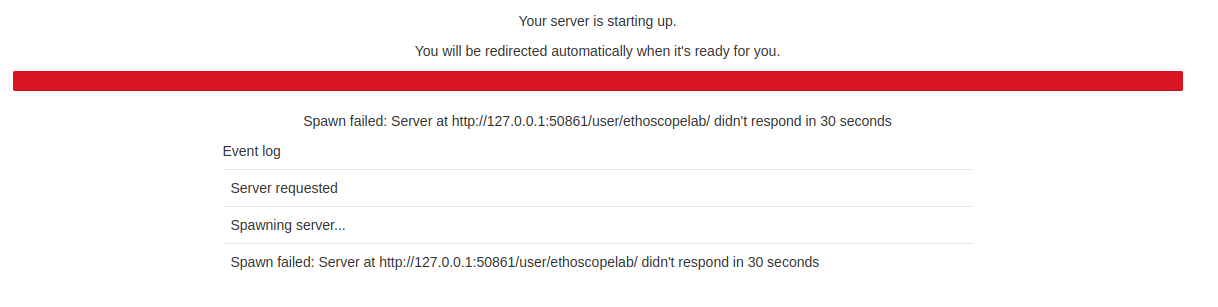
It means that the ethoscopelab user does not have access to its own folder. This most likely indicates that you are running the container mountingwith thea foldermounted ontohome your local machinedirectory, but the ethoscope home folder is either not present or does not have readingread/write andaccess writingfor access.UID/GID 1000:1000 (the default inside the image — configurable via UID/GID in .env).
Install ethoscopy in your Python space
Ethoscopy is on github and on PyPi. You can install the latest stable version with pip3.
pip install ethoscopy
As of version 2.0.5, the required dependencies are:
Python >= 3.10
numpy >= 2.0
pandas >= 2.2.2
plotly >= 5.22
seaborn >= 0.13
hmmlearn >= 0.3.2
pywavelets >= 1.6
astropy >= 6.1
tabulate >= 0.9
colour >= 0.1.5
nbformat >= 5.10
Tutorial data
Starting with ethoscopy 2.0.5, the six tutorial pickle files (~36 MB total, dominated by overview_data.pkl at ~31 MB) are no longer bundled with the PyPI wheel — pip install ethoscopy ships code only. The tutorial notebooks fetch the datasets on demand with a single one-time call:
import ethoscopy as etho
etho.download_tutorial_data()   # idempotent — skips files already on disk
By default this populates ~/.cache/ethoscopy/tutorial_data/, which is user-writable on every platform (no root or sudo needed). After that, get_tutorial('overview'), get_tutorial('circadian') and get_HMM('M'|'F') work as shown in the tutorial notebooks.
Lookup order. At load time, ethoscopy checks three locations in this order:
<site-packages>/ethoscopy/misc/tutorial_data/— dev / editable installs and theethoscope-labDocker image (which pre-populates it at build time, see below).$ETHOSCOPY_TUTORIAL_DATA_DIRif set — useful for shared clusters where one admin-maintained copy serves many users.~/.cache/ethoscopy/tutorial_data/— the default fordownload_tutorial_data().
The canonical URLs live at github.com/gilestrolab/ethoscopy/tree/main/src/ethoscopy/misc/tutorial_data. Place the six *.pkl files in any of the three locations above if you prefer to download manually.
ethoscope-lab users don't need to do anything. The Docker image (
ggilestro/ethoscope-lab:1.2and later) runsdownload_tutorial_data(dest_dir=package_tutorial_data_dir())during build, so the pickles are already present in the image. JupyterHub users can run the tutorials without any download step.
Why this changed
Versions 2.0.0–2.0.4 of the PyPI wheel unintentionally shipped without any tutorial pickles because .gitignore contained a blanket *.pkl rule that Hatchling's default VCS plugin honoured when building the wheel. Users running get_tutorial('overview') got FileNotFoundError with no guidance. Version 2.0.5 makes the omission explicit, ships a stdlib-only download helper with a user-writable default, surfaces an actionable error message when files are missing, and (for the Docker image) pre-populates them during the build so containerised users never see the download step.